
Tired of drafting hundreds of constituent emails?
Pete isn’t here to take anyone’s job. He’s here to give folks at the Ohio Statehouse super-powers to do more for the communities they fight for.
Pete can help. Open the email, click Pete, and a grounded reply is waiting in your Outlook. Spend your time on deep policy work and building relationships at the Ohio Statehouse instead of hours and hours defending your office inbox from AI‑generated form emails.
Works in Outlook on the web — outlook.com, or your office’s Outlook in the browser — and in the new Outlook on Windows and Mac.
Pete the Pigeon in Outlook, in two minutes.
Open a constituent’s email, click Pete the Pigeon, and Pete drafts a reply grounded in Ohio Statehouse records — bills, votes, testimony, campaign money — with sources attached. It runs inside the Outlook you already use, and it takes about two minutes to turn on.
Step 1 — Copy your link
Outlook loads Pete from one link. Copy it now; you’ll paste it in Step 5.
https://petethepigeon.com/outlook/manifest.xmlUsing Outlook in a web browser (outlook.com, or your office’s Outlook on the web) is the fastest route. Every screenshot below is from Outlook on the web.
- Open any email in Outlook on the web — sign in at outlook.com (or your office’s Outlook on the web) and click any message so it opens on the right.
- Click More apps — it’s the
four-squares button on the Home ribbon, under “Add-ins”.

“More apps” on the Home ribbon, just right of Print. - Click Get add-ins — bottom-right
corner of the little panel that opens.
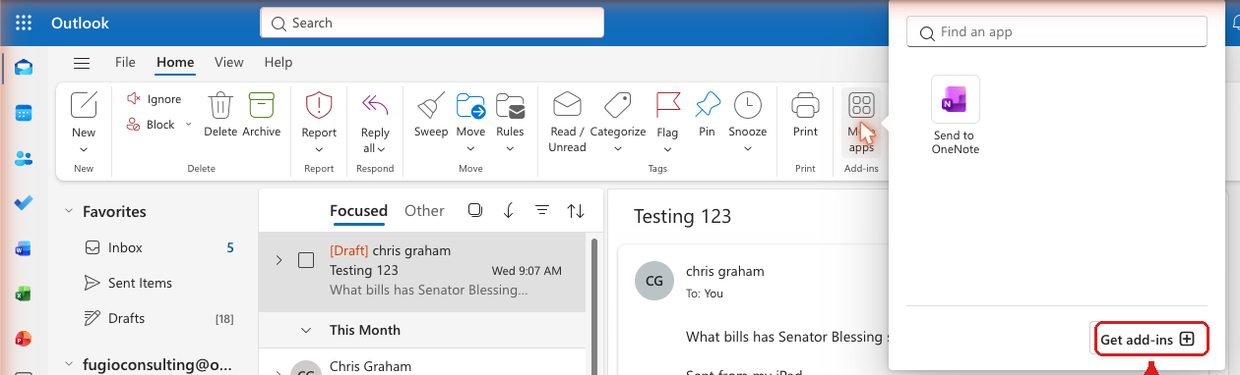
The panel after clicking More apps. (Once Pete is installed, his button shows up here too.) - Click My add-ins — it’s the second
link at the top-left of the “Add-Ins for Outlook” window that opens.
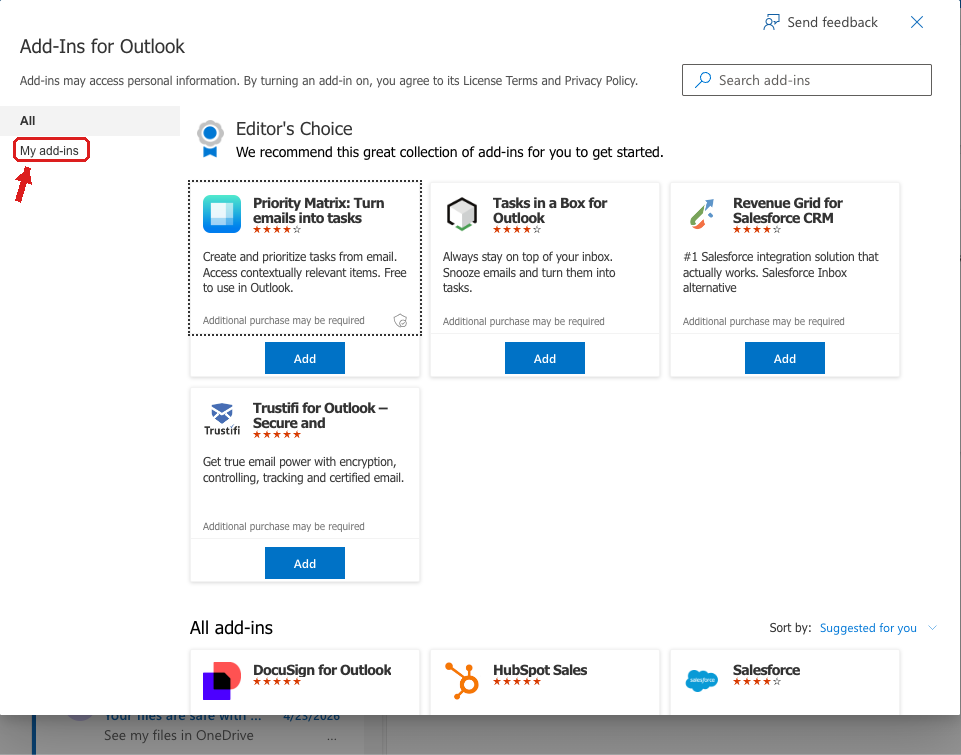
“My add-ins”, top-left of the Add-Ins window. - Scroll to the bottom, to “Custom Addins” — click
+ Add a custom add-in, then Add from URL…
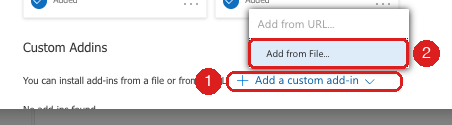
Bottom of the My add-ins page. Pick “Add from URL…”. If your office has greyed that out, pick “Add from File…” and use the downloaded file from Step 1 instead. - Paste your link from Step 1, click OK, then Install on the prompt that follows.
- You’re in — close the window, open any email, click More apps again and choose Pete the Pigeon. The draft pane opens on the right.
Using the Outlook app on your computer? The fastest way is to have your IT desk turn Pete on for the whole office; he then appears in Outlook for Windows, Mac and the web with nothing to install. Send them this one-page note. Installing it yourself works in Outlook on the web at outlook.com; the desktop app picks it up from there.
Installing for a whole office? (Microsoft 365 admin)
- Sign in to the Microsoft 365 admin center and go to Settings › Integrated apps › Add-ins.
- Choose Deploy Add-in › Upload custom apps ›
provide a link to the manifest file, and paste:
https://petethepigeon.com/outlook/manifest.xml - Assign it to Everyone or to specific users, then Deploy. The button usually appears within the hour, and at most within 24 hours.
Screenshots of every click, on one page for IT: petethepigeon.com/outlook/it.
What Pete does
- Draft reply: One click, a reply grounded in the public record, opened for you to edit and send. Pete never sends.
- Message summary and a sender card: How often they write, what about, tone, how fast you usually reply.
- Sort inbox by urgency: Tags Urgent and Important unread mail as Outlook categories and lists them; a Draft button on each row saves a reply to Drafts.
- Pete in reply windows: Open any reply and click Pete to write the draft into it.
- Ask Pete: The chat circle, for a quick question about a bill, a vote, or the money. Questions and drafts share the same free daily count.
- Share Pete: Opens a real email you send to colleagues; each send earns extra free drafts.
- Pin him once: Click the pin at the top of Pete’s pane and he stays open, following whichever email you select, until you close him.
Mailbox features (sort, sender counts) use a Microsoft sign-in inside the pane that you approve once.
Quick Statehouse question? Ask Pete.
Bills, votes, hearings, testimony, campaign money — and anything about how Pete works. Want him in Claude, ChatGPT and Outlook? Free account. Need more? Pete Pro.